/
User Management
User Management
- Maria Tarnopolskaya (Unlicensed)
- Anastasia Medovkina (Deactivated)
Owned by Maria Tarnopolskaya (Unlicensed)
User Management allows you to organize your team by roles and permissions, making it easier to assign and manage technicians’ tasks and responsibilities.
The User Management page allows you to:
- Invite and create users.
- Deactivate users.
- Email users.
- Configure roles and permissions.
- Configure Directory Alerts (New Invitations, ServiceChannel Usage Fee Notifications, Client Compliance Alerts).
- Create shifts for different users to automate the work order assignment process.
- Assign work orders to technicians.
Accessing User Management
⦿ How to Access User Management
- In Provider Automation, click the menu in the top-left corner.
- Select Administration > User Management.
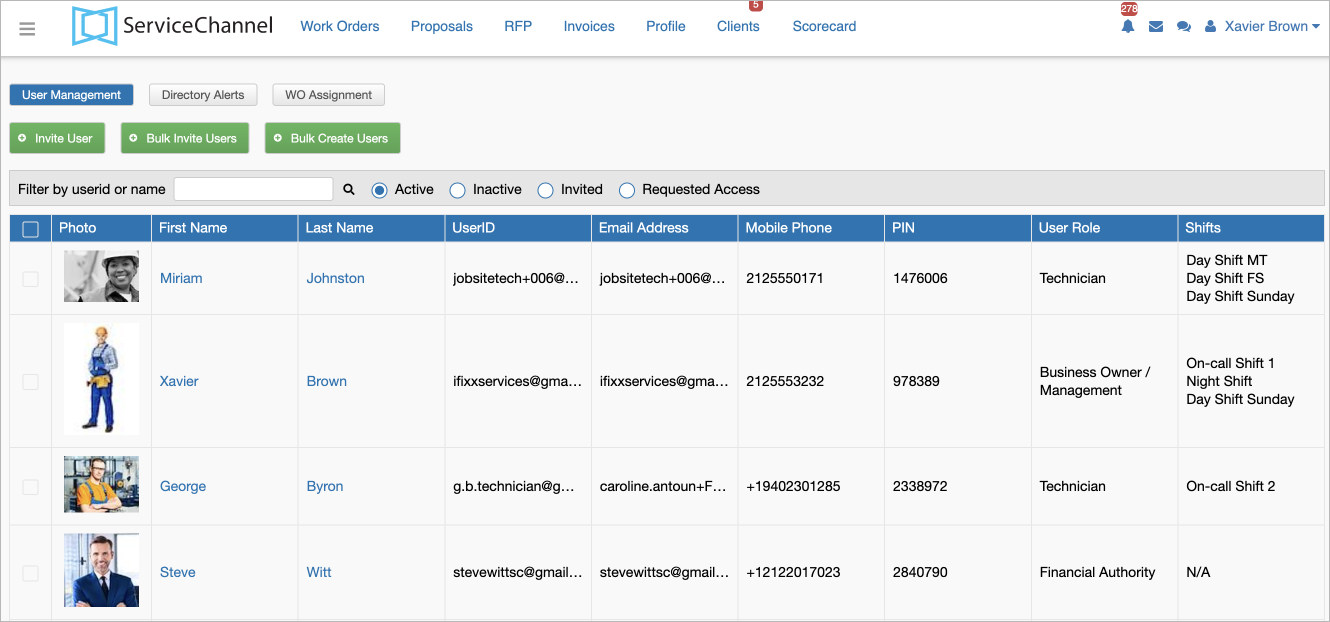
Navigating User Management
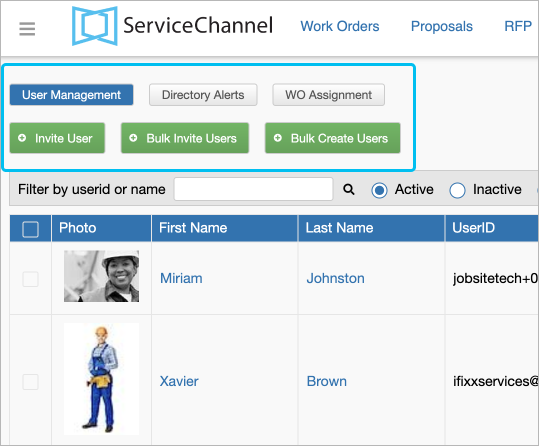
On the User Management page, there are 6 main features:
- User Management: Manage user roles and authorization to access work orders, proposals, or invoices. You can also deactivate users, reset the password, email users, and assign shifts to them.
- Directory Alerts: Manager alerts that users receive.
- WO Assignment: Assign work orders to technicians manually and automatically and forward work orders to other technicians.
- Invite Users: Add users such as office personnel and field technicians to your Provider Automation account.
- Bulk Invite Users: Add users such as office personnel and field technicians to your Provider Automation account in bulk via the template.
- Bulk Create Users: Add users to your Provider Automation account without invitations so that they can start using ServiceChannel as soon as you give them credentials.
Adding field technicians through this method allows them to use ServiceChannel Provider Mobile. See SC Provider Mobile for more information.
Articles in this Section

Related Articles
Related content
Add or Modify Users and Assign User Roles
Add or Modify Users and Assign User Roles
More like this
Adding and Modifying Users and Assigning User Roles
Adding and Modifying Users and Assigning User Roles
More like this
Manage Directory Alerts
Manage Directory Alerts
Read with this
About User Management
About User Management
More like this
SC Provider Mobile
SC Provider Mobile
Read with this
Adding and Managing Technicians
Adding and Managing Technicians
More like this